How to transfer an Organisation
How to transferr your Organisation (and all the plans in it) to another Brixx user.

Written by Srishti
Updated over
9 months ago
Transferring an Organisation allows you to move it (and all the plans in it) to another subscribed user.
Before transferring an Organisation
Before you transfer the ownership of your Organisation to someone else, it is important to know that:
Both the current and new owner must hold active Brixx subscriptions. It is not possible to transfer an Organisation to or from a trial account.
All the plans in the transferring Organisation should be unlocked. If there are any locked plans, the transfer will not be possible.
The receiver must have enough free plan slots to accommodate all the plans in the Organisation they are receiving. If not, the transfer will not be possible.
When you transfer your Organisation, you can choose whether you want to keep existing rights for all current users – both those with Organisation-level access and those who can only access specific plans in it.
How to transfer an Organisation
To transfer an Organisation:
Go to the Plans page.
From the Organisation dropdown in the top centre of your screen, choose the Organisation you want to transfer. You can also choose to see All Organisations and then select the one you wish to transfer.
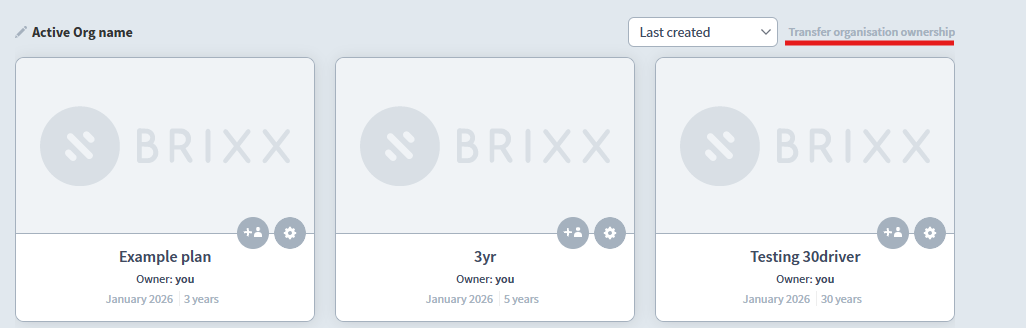
Click the Transfer Ownership button, on the far right of the Organisation name.
In the popup, you will see the name of the Organisation being transferred.
Enter the email address of the receiving subscriber who will become the new owner of that Organisation.
If you want existing users (both those with access to the Organisation or specific plans in it) to retain their rights and roles, check the box.
Click Transfer to complete the process.
After transferring an Organisation
Once the transfer is complete:
Your plan slots are freed up, allowing you to create new plans.
The new owner’s free plan slots decrease because they now own the plans in the transferred Organisation.
Existing users (both with access to the Organisation and specific plans in it) may or may not retain their rights - depending on the option you chose during the transfer.
The previous Organisation owner becomes the Group Administrator.
Did this answer your question?


